
Beenest - operator guide
You create the account.
Whether you want to try Beenest yourself or your director asked you to.
Beenest records attendance and the required staffing ratio. It sits next to your existing administration, without moving master data. The contract and privacy stay with the operator.
Updated: 2026-05-27
Account
You create the account
Whether you want to try Beenest yourself or your director asked you to: the account is always created by the operator.
Beenest records attendance and the legal staffing ratio. It sits next to the existing administration, without moving master data. Contract and privacy stay with the operator. That is why the director does not create the account, you do.
- Create the account
- Confirm privacy and contract
- See the offer
- Create the center, the director gets the email
- Try it
Overview: What Beenest does · Pricing
Pass this guide on:
/setup-for-operatorsAccept the legal terms
In the portal you are shown the privacy policy, the data-processing agreement and the terms of use. You confirm there. This also applies to the trial.
Offer
You see the right offer and get a free trial. No payment details, no automatic renewal.
The offer is only accepted once you explicitly click in the operator area. Without the click, access ends after the trial.
With a voucher the trial can differ. You enter the code in the operator area.
Center
Email to the center
As soon as you create the center in the operator area, an email goes automatically to the center address on file. The director clicks the link and is in.
- 1Create the center, enter the director's email
- 2The invitation goes out on its own
- 3The director clicks the link in the email and sets their password
Try it
The director can start the same day. Free to try, without the offer applying yet.
What they do on the computer and the tablet is in the guide for directors. You can pass it on.
Setup for directorsOperator portal
Once the flow is clear: email and password, click the confirmation email, role "operator" even for a single center. Without the click in the email it does not continue.
Decisions
Before the centers change their routine
You set these cornerstones as the operator and pass them to your centers.
Choose the device option
You decide what your centers run the check-in on, and tell your centers the option:
Tablet from Beenest
A preconfigured tablet we send to the center. Switch on and go.
The tablets we ship are an iPad with a 9.7 or 10.2 inch display.
Your own device
The center uses its own tablet, or one you provide. We set it up together.
It has to be an Apple device: at least an iPad 5 with iPadOS 15.
Both options can be combined with a physical QR/NFC scanner.
Mounting
Help your directors find a good spot:
- Mount portrait at the entrance
- Easy to reach for adults
- Out of children's reach
- Permanent power and internet (Wi-Fi or LAN with adapter)
Set the compliance level
Set three cornerstones with your directors, in the app on the center's computer:
1. How should your directors use the app?
Decide together: optimize for Live or for the Day, under Settings > Region.
2. Rules and edge cases
Cross-check our rules with the director, review the default numbers for your region and decide edge cases, under Settings > Region in the center app.
Documentation tiers3. Test and set the export
Test the export and decide together how it should look, under Settings > Export on the center's computer.
Example: what a daily report looks likeUse our staff planning
We collect all the actual data. When directors plan shifts visually with our simple editor, we can compute many values from actual and planned that make your life easier.
Actual plus planned
Who was really there, plus the planned shift. From that come figures for staffing ratio, absence and the next plan, without Excel rework.
Parent app and staff app?
Decide whether your centers use the parent app and the staff app.
Use the parent app?
Parents see check-ins live, check children out and receive messages, in 28 languages. Anyone who does not want an app uses the web portal.
Read the pros and cons of the parent appUse the staff app?
A separate app for the team (iOS/Android): traffic light, own check-in and check-out, working hours, sick notes, internal chat. Access via the staff ID at the center, no extra public account.
See the staff appGroup
Everything in view
Live and documented
Follow what happens in one or several centers in real time, with early warnings, events and group help at a glance.
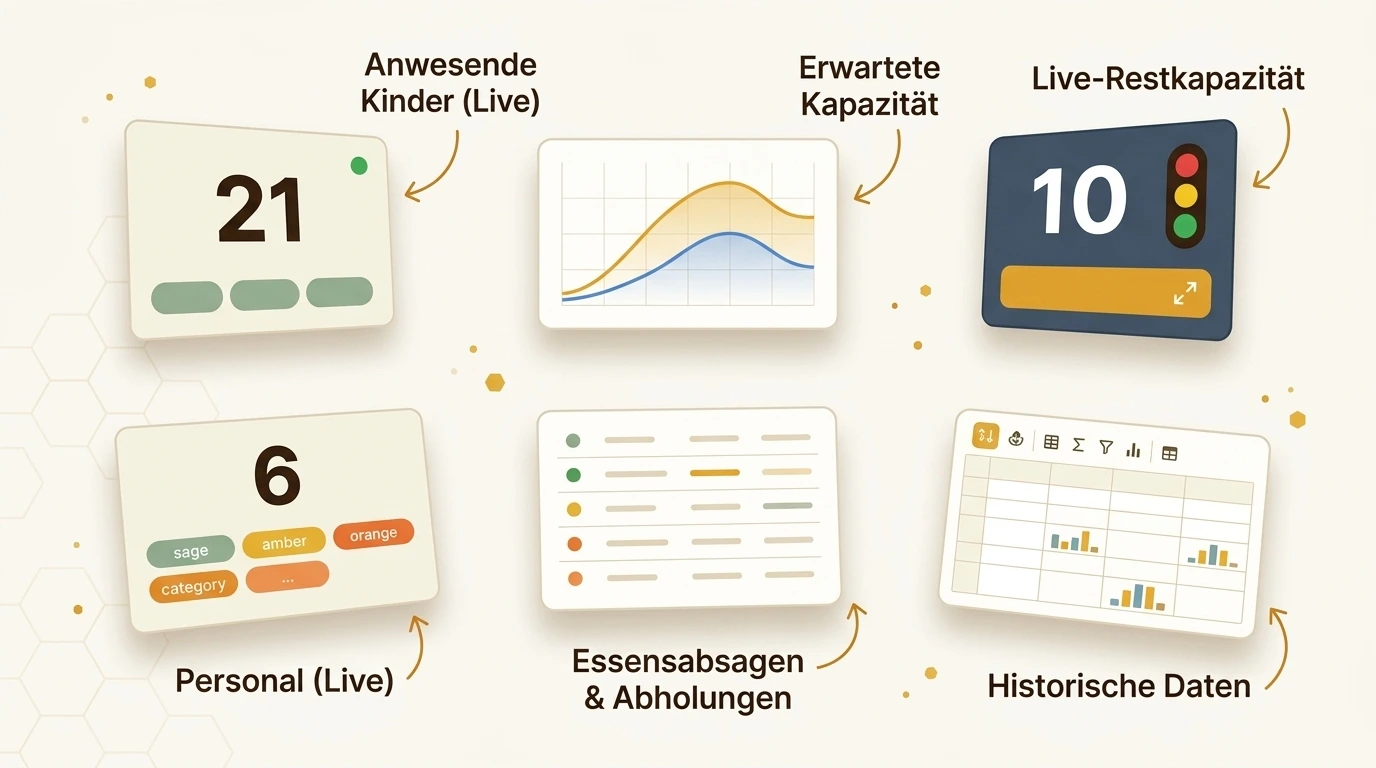
Live group dashboard (the original shows a German sample list, replaced here by a placeholder). See the operator reporting page for the real thing.
All data is visible and documented for you at any time.
See operator reportingTogether
Where operators and centers work together
Operators and directors share the responsibility. At these points the two mesh, Beenest connects both roles in one system so nothing has to be recorded twice.
Access and option
Creates the account, confirms privacy and offer, creates the center. The director gets the email automatically.
Clicks the link in the email, sets the password and enters base data, groups and staff.
Install the tablet
Supports with hardware and mounting.
Mounts the tablet and connects the check-in app.
Choose the compliance level
Sets the documentation rules together with the center (region).
Enters the chosen rules in the settings.
Ongoing documentation
Sees all values live in the group dashboard.
Documents attendance and staffing ratio automatically.
Support
Help and support
You are never on your own. Reach out any time and we will help you get set up.
Contact us