
The Beenest staff app for your team
Occupancy, your own group, working hours and team chat on the staff phone, in the same design as the parent app.
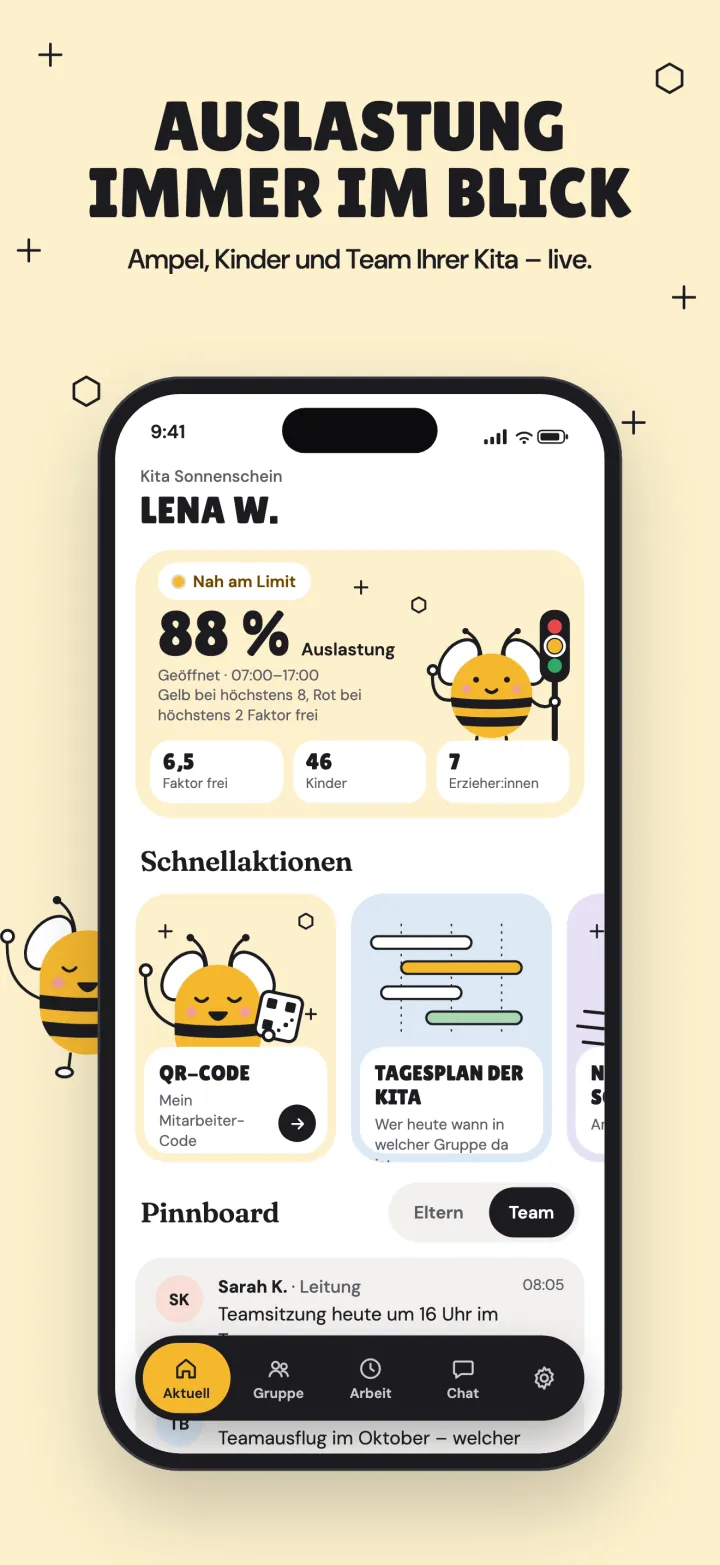
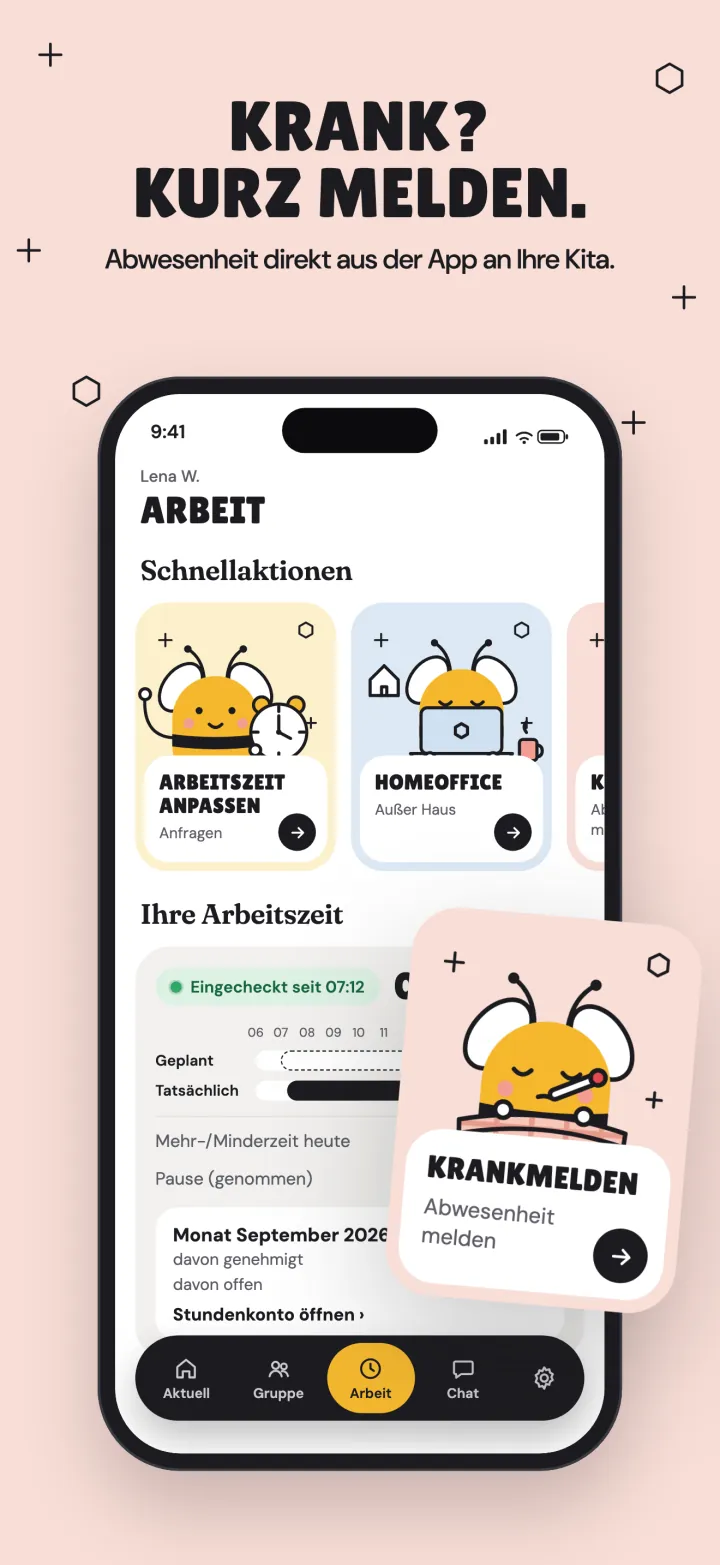
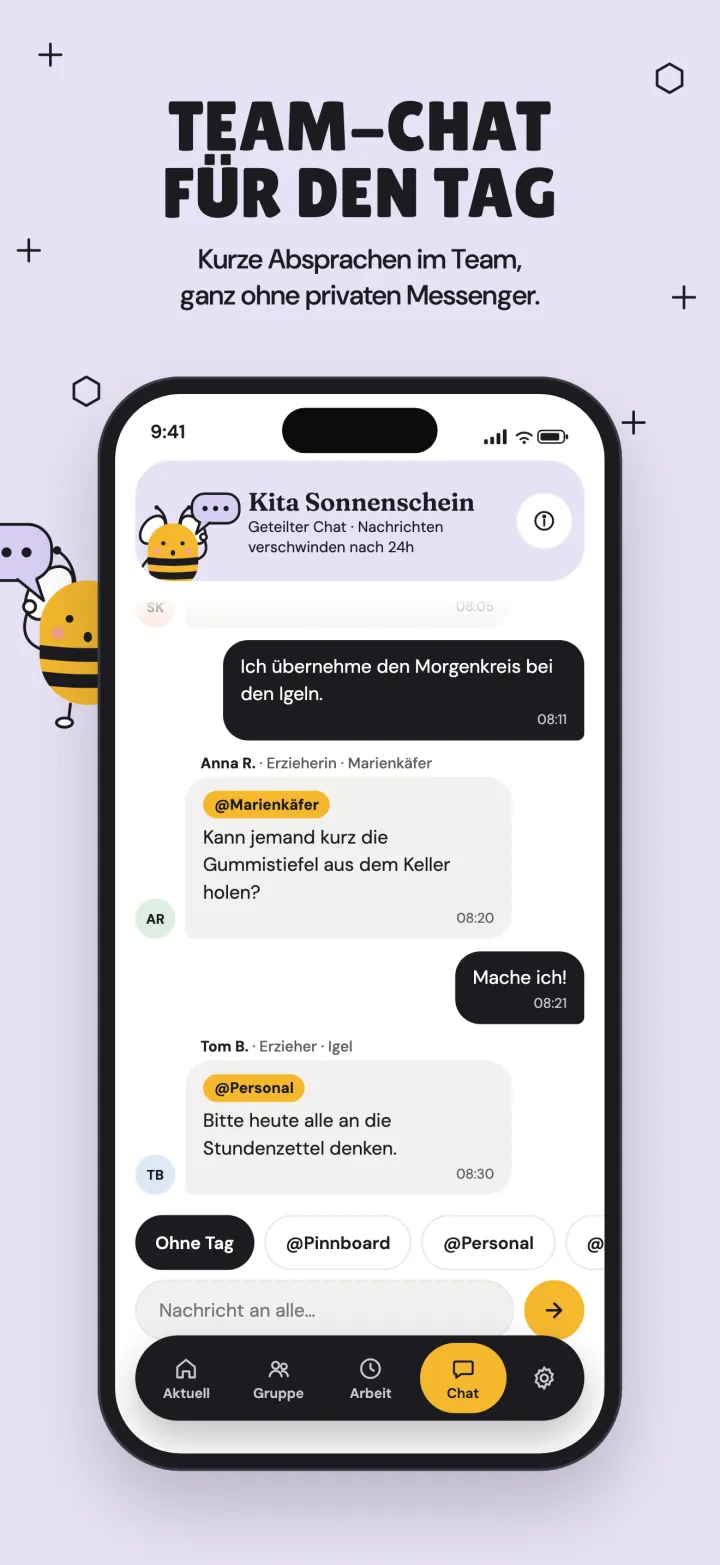
What the staff app looks like
A look at the screens the team uses most.
What the app can do
What the team handles themselves, and where your center settings still apply.
Live occupancy
The traffic light, checked-in children and the team at a glance, with a clear 'closed' outside opening hours. Counts only, never children's personal data.
Digital staff badge
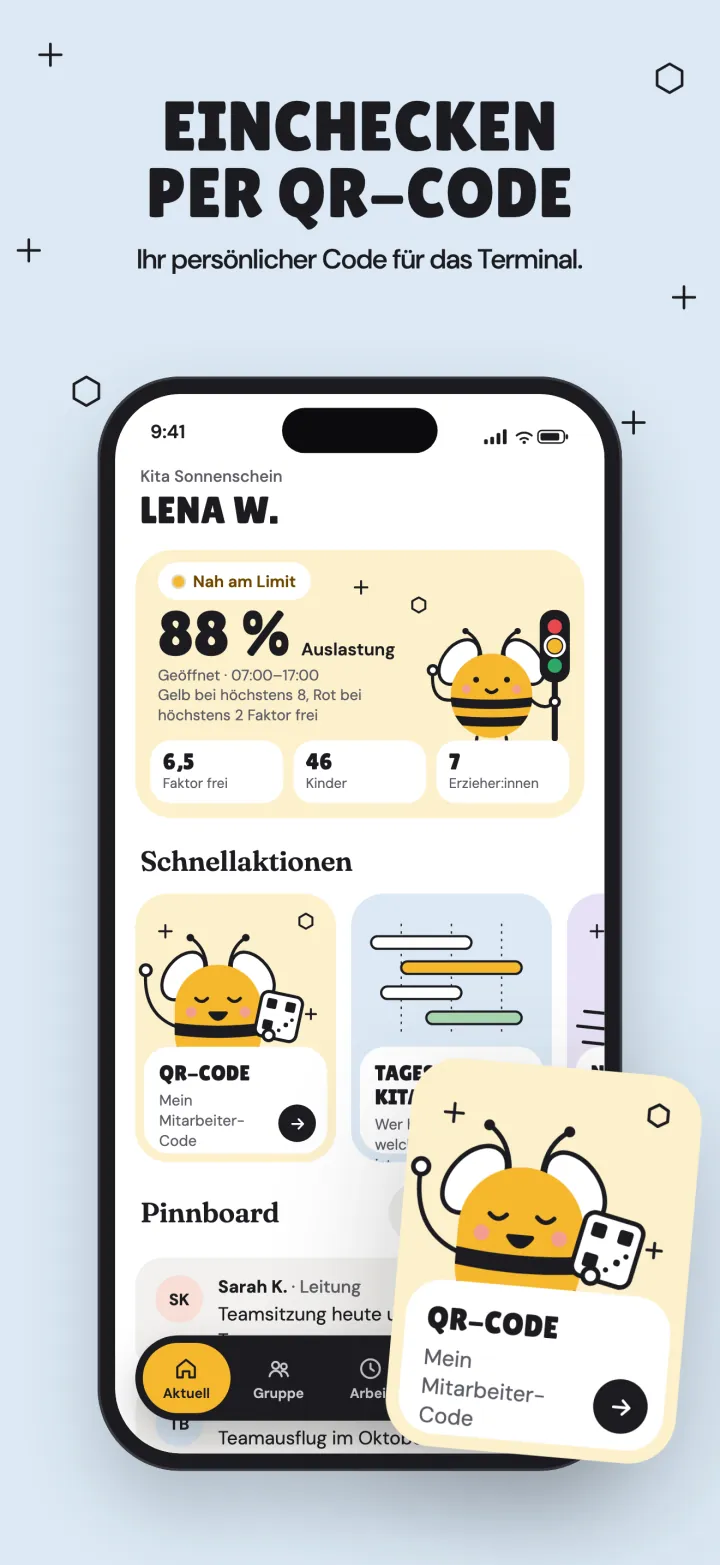
Your personal QR badge lives in the phone and adds to Apple or Google Wallet, for check-in and check-out at the terminal.
My group
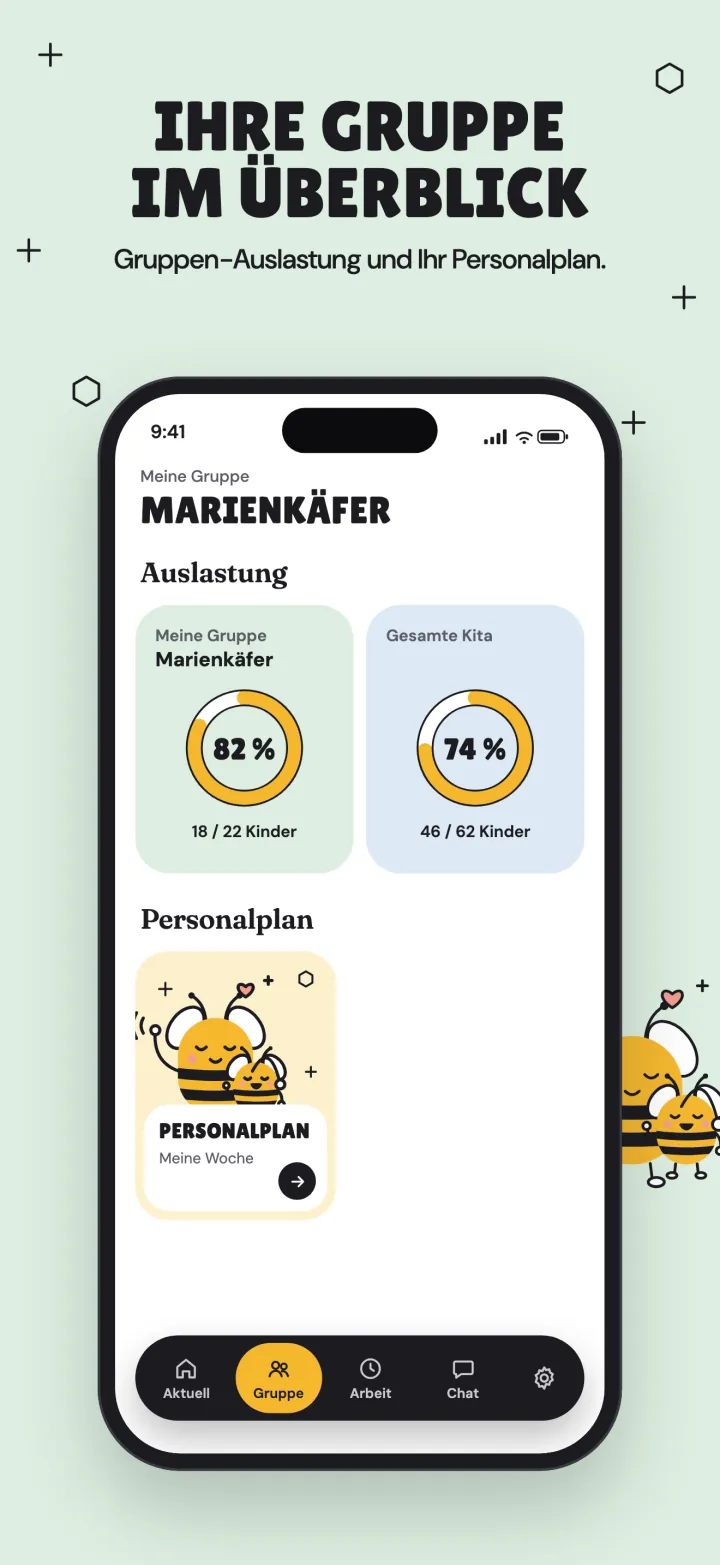
Your own group's occupancy next to the whole center, side by side.
Team day plan
Your own week and the day plan for every group, with colleagues' names, shifts, breaks, who is present and a now-line. Only if your center uses staff planning.
Working hours and overtime
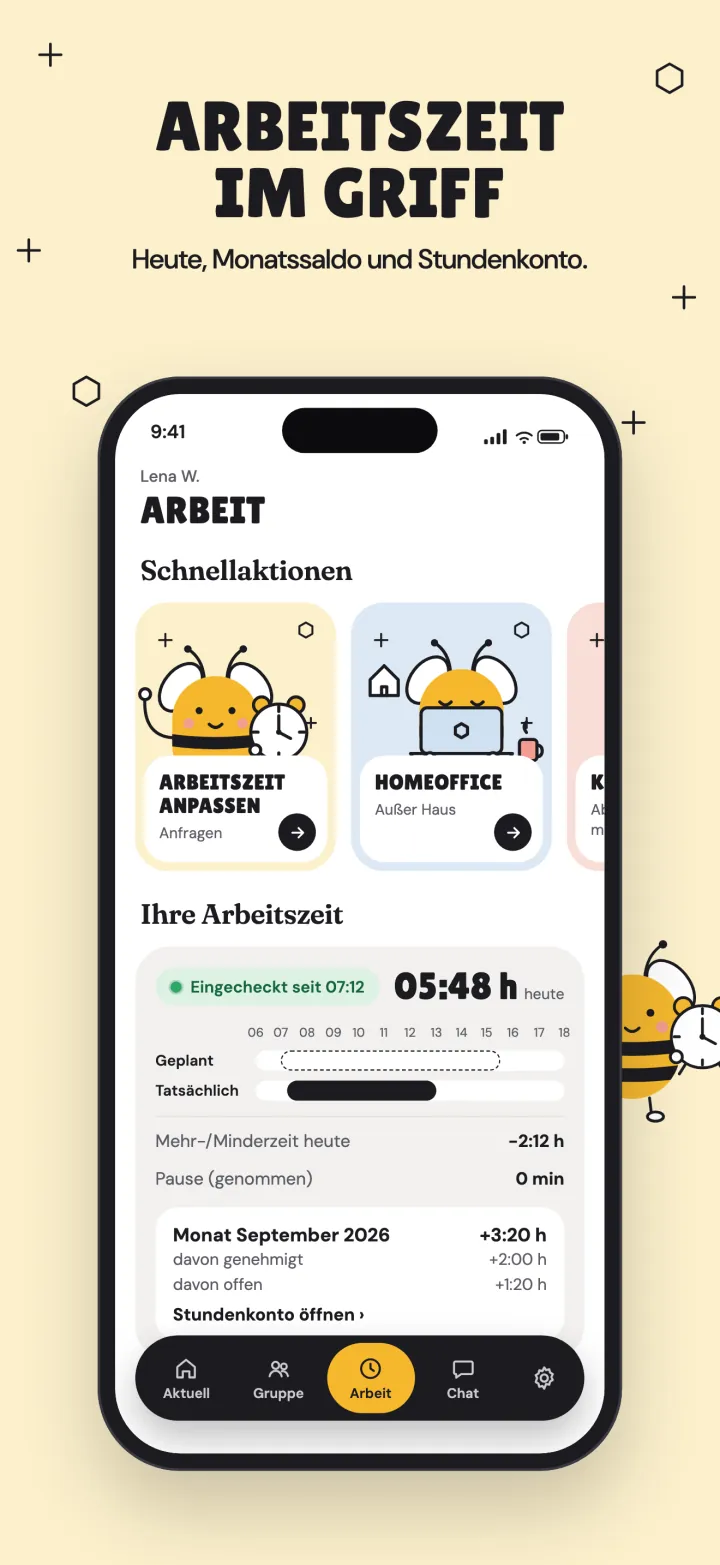
Today's hours, your balance and your overtime, clear instead of on request, and you can ask for a correction if something looks off.
Home office
Record work from home straight from the app.
Absence and sick notes
Report an absence or call in sick with a few taps; your director sees it in staff planning.
Team chat
Quick day-to-day coordination in the team, without a private messenger. Messages clear automatically and nothing is stored on the device.
Message to parents
Educators write to parents directly, only after entering the staff password, fresh for every message.
Good to know
Before you roll the app out across the team.
Optional
Your center runs fine without the app: the team still checks in at the terminal or the staff console.
Own device
The app runs on the team's own phones. Before private devices are used, get the consent of your works council (OR) where you have one. It needs no location, photos, contacts or microphone access, and does no tracking.
Separate from the parent app
Parents and staff use two separate apps. The parent app has no staff area.
What staff need to sign in
Your team signs in to the app with these details:
Center ID
The ID of your center.
SettingsPersonal QR code
The educator's QR code, the same one used at the terminal.
Database > StaffStaff password
Your center's shared staff password.
Settings